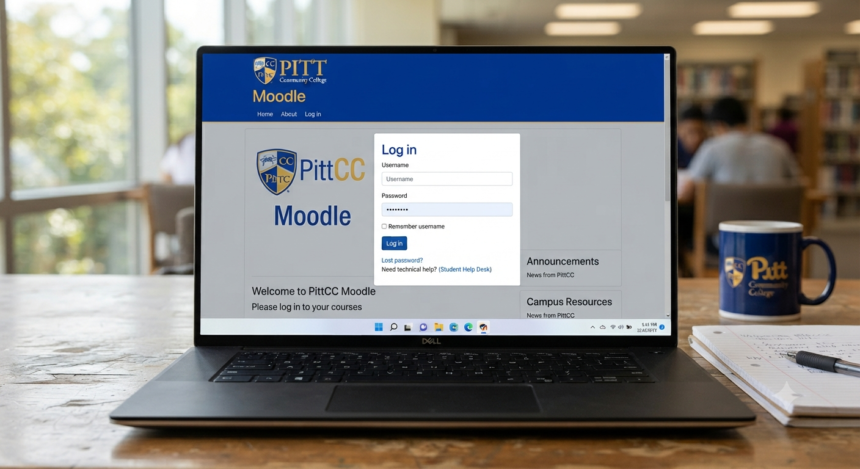
The Pittcc moodle login is the main gateway students use to reach Pitt Community College’s Moodle learning environment, where online and many campus-based courses can provide assignments, announcements, quizzes, grades, files, and other course materials. The important detail is that Moodle is not a completely separate account system: Pitt Community College connects access to its institutional sign-in environment, so a problem with your myPittCC credentials, Microsoft authentication, or multi-factor authentication can also stop you from reaching Moodle.
Pitt Community College officially identifies Moodle as its learning management system (LMS) and says it has used the platform since 2004. The college also explains that myPittCC provides a single set of credentials for services such as email, Moodle, and other online resources, which is why students should troubleshoot the college account first rather than searching for an unrelated Moodle password.
What Is the Pittcc Moodle Login?
The Pittcc moodle login is the authentication process that gives authorized Pitt Community College students and employees access to the college’s Moodle LMS. Moodle itself is the course-delivery platform, while your PCC account acts as the identity used to prove that you are authorized to enter the system.
This distinction matters. If you can open Moodle but cannot authenticate, the problem may be with your college credentials or MFA; if you can authenticate but a class is missing, the issue is more likely related to course enrollment, course availability, or how the instructor has configured the class.
PCC uses Moodle for fully online courses, but Moodle is not limited to students taking 100% online classes. The college’s current learning-format guidance shows that traditional, blended, hybrid, Internet, HyFlex, and several synchronous formats may use Moodle or related courseware for assignments, resources, assessments, and communication.
Official Pittcc Moodle Login Process
For most users, the safest Pittcc moodle login method is to start from an official Pitt Community College page or the college’s recognized Moodle service rather than from a third-party “student login” website. PCC’s troubleshooting guidance specifically directs students to access myPittCC from the college website, while its distance-learning FAQ describes myPittCC as the portal providing access to Moodle and other online resources.
A practical sign-in sequence is:
- Open the official Pitt Community College website and select myPittCC, or access Moodle through an official PCC link.
- Enter your complete PCC student credentials exactly as required.
- Complete multi-factor authentication (MFA) when the institutional sign-in process requests it.
- After authentication, open Moodle and review your dashboard or course list.
- Select the required course and check announcements, assignments, deadlines, and instructor instructions.
A direct request to PCC’s Moodle host currently redirects authentication through Microsoft’s sign-in infrastructure using SAML. That matches PCC’s published guidance stating that access to both the myPittCC portal and Moodle is integrated with multi-factor authentication.
Why the Microsoft Sign-In Screen Appears
Some students search for Pittcc moodle login and become concerned when they see a Microsoft authentication screen rather than a traditional Moodle username box. In the current setup, that does not automatically indicate a problem because PCC Moodle can route users through the college’s centralized Microsoft authentication process.
Centralized authentication allows one institutional identity to work across multiple college services. It also means that a failed Microsoft or MFA step can look like a “Moodle problem” even when Moodle itself is functioning normally.
Pittcc Moodle Login Username and Password Basics
PCC publishes a specific username format for student accounts and instructs students to use lowercase letters when entering their usernames. Current college guidance also states that new passwords must contain at least 14 characters, while the Technical Support page documents additional complexity requirements.
For security, students should follow the college’s official login instructions rather than copying default-password formulas from third-party websites. If you are a new student and have never signed in before, follow PCC’s current instructions and replace your initial password when the system prompts you.
PCC states that new students are automatically assigned a myPittCC account and password after their Admissions application is processed; an official registration FAQ says this normally occurs within two business days. If your application was processed very recently, account provisioning may explain why the Pittcc moodle login does not work immediately.
Multi-Factor Authentication and Pittcc Moodle Login
Multi-factor authentication adds another proof of identity after a correct username and password. Pitt Community College states that myPittCC and Moodle access are integrated with MFA and documents verification methods that can include alternate email, phone-based verification, an authenticator app, or an approved electronic code device.
This creates a useful troubleshooting rule. If your password appears to be accepted but you cannot complete the second verification step, focus on MFA and account verification rather than changing Moodle settings.
What to Do When MFA Fails
If the Pittcc moodle login stops at the MFA stage, first make sure the verification request corresponds to a sign-in you actually initiated. Never approve an unexpected authentication request, because an unsolicited MFA prompt can indicate that someone else is attempting to access your account.
Next, use one of the verification methods registered with your PCC account. If you have lost access to that method—for example, after changing your phone—use PCC’s official recovery options or contact Technical Support instead of attempting to bypass the security step.
How to Fix Pittcc Moodle Login Problems
PCC’s own troubleshooting documentation provides several useful checks for users who cannot access myPittCC. It recommends reviewing the login instructions, checking capitalization and spaces, making sure similar-looking characters have not been confused, clearing browser data, trying another browser or device, and using the official password-reset process when necessary.
The fastest way to resolve an access problem is to identify exactly which stage fails. A username problem, password rejection, MFA failure, browser loop, and missing course require different solutions.
1. The Username Is Rejected
Re-enter your username carefully and follow PCC’s published format. Because the college specifically warns students about capitalization, spaces, and character mix-ups, manually typing the credentials can sometimes solve a Pittcc moodle login problem caused by an incorrect autofill entry.
Also make sure you are using your PCC institutional account rather than a personal Microsoft account. If several Outlook or Microsoft 365 accounts are already active in the browser, the authentication process can select the wrong identity.
2. The Password Is Rejected
Use the official password-reset process linked by Pitt Community College rather than guessing repeatedly. PCC says current passwords must be at least 14 characters, and the college notes that users can be prompted to update a password when it reaches the expiration point.
Repeated password guessing rarely solves an account problem. Resetting through the official process gives you a cleaner way to determine whether your institutional account is working normally.
3. You See a “Site Not Shared” Error
PCC’s troubleshooting guidance specifically discusses a “site not shared” error and instructs students to return to the login process and ensure they are using their complete @my.pittcc.edu credentials. The college also recommends clearing browser cache, cookies, history, and related data if the issue continues.
For a stubborn Pittcc moodle login session, close your browser after clearing its data and then reopen it before attempting another sign-in. A private or incognito window can also help determine whether an existing Microsoft session is selecting the wrong account.
4. Moodle Keeps Redirecting or Reloading
Modern authentication relies on cookies, session tokens, and redirects between PCC and Microsoft services. Stale sessions, blocked cookies, multiple Microsoft accounts, or unusually restrictive browser extensions can sometimes interfere with that process.
Try signing in through one clean browser session and close unnecessary Microsoft account tabs first. If Pittcc moodle login works in a different browser or device, the evidence points toward a local browser/session problem rather than a disabled PCC account.
5. Login Works but Your Course Is Missing
A successful Pittcc moodle login does not necessarily mean every registered course will appear immediately. A course may not yet have been opened to students, an enrollment update may still be processing, you may be viewing the wrong term, or the class may use additional courseware alongside Moodle.
Check your official registration information first. If the course appears on your schedule but remains absent from Moodle, contact your instructor or the appropriate college support team and provide the course code, section, semester, and a screenshot of what you see—without exposing passwords or MFA codes.
Pittcc Moodle Login for Online, Hybrid, and Campus Courses
Pitt Community College’s course-format documentation shows how broadly Moodle is used across the institution. Internet courses involve 100% online work, while blended, hybrid, HyFlex, synchronous online, and even traditional courses may require Moodle for assignments, assessments, resources, or communication.
That makes learning the Pittcc moodle login process important even for students who attend lectures physically on campus. Testing your account before the first significant assignment is much safer than discovering an authentication problem minutes before a deadline.
For distance learners, PCC also maintains dedicated student resources and states that online tutoring is available from within Moodle. Its distance-learning materials emphasize reliable computer and internet access, technology skills, organization, self-motivation, and meeting online deadlines.
Moodle vs. myPittCC: What Is the Difference?
One of the most common sources of confusion is treating myPittCC and Moodle as interchangeable. They are connected, but they perform different jobs: myPittCC is the broader institutional portal and account environment, while Moodle is the learning management platform used for coursework.
Think of myPittCC as a doorway to multiple college services and Moodle as one of the academic spaces behind that doorway. Because PCC uses shared authentication, the Pittcc moodle login may send you through Microsoft authentication before the Moodle dashboard appears.
This difference also improves troubleshooting. If email, myPittCC, and Moodle all reject your account, the issue is probably broader than Moodle; if other PCC services work but one course is missing, account credentials are less likely to be the cause.
Security Tips for the Pittcc Moodle Login
College accounts can provide access to grades, messages, course files, institutional email, and other student services. Treat your PCC password and MFA approvals as sensitive credentials rather than information that can be shared with classmates, tutors, or anyone offering to “fix” your account.
Use these security habits:
- Sign in only through official Pitt Community College or recognized Microsoft authentication pages.
- Never send passwords or MFA verification codes through email, text, or chat.
- Reject authentication prompts that you did not initiate.
- Use a unique password meeting PCC’s current requirements.
- Sign out completely when using shared or public computers.
- Keep your MFA recovery methods current.
- Avoid unofficial websites that imitate a college login screen.
- Check the destination carefully before entering institutional credentials.
The goal is not merely to make the Pittcc moodle login work once. Reliable account security helps protect your access for the entire semester.
Browser and Device Tips for Reliable Moodle Access
A modern, updated browser is usually the best environment for Moodle and Microsoft authentication. Keeping Chrome, Edge, Firefox, Safari, or another supported browser updated reduces the chance that obsolete browser behavior interferes with authentication or interactive coursework.
Your internet connection matters as well. A page may load correctly while a large assignment upload, timed assessment, embedded video, or external courseware tool fails on an unstable connection.
Before an important online test or submission:
- Restart the browser if it has been running for days.
- Close unnecessary tabs and applications.
- Confirm the internet connection is stable.
- Log into Moodle well before the deadline.
- Open the required course and activity in advance.
- Keep your device connected to power when possible.
- Verify files before uploading them.
These basic checks cannot prevent every technical problem, but they reduce several avoidable causes of last-minute failures.
What to Check Before Contacting Technical Support
Before escalating a Pittcc moodle login problem, collect enough information to describe it accurately. “Moodle doesn’t work” is much harder to diagnose than “my PCC username is accepted, but MFA never sends the verification request.”
Record:
- The exact error message.
- Whether myPittCC works.
- Whether PCC email works.
- Whether the password is accepted.
- Whether the error occurs before or after MFA.
- The browser and device being used.
- Whether another browser produced the same result.
- Whether the problem affects Moodle generally or only one course.
- The course code and section if a class is missing.
Do not include your password, temporary verification codes, recovery codes, or other secret authentication information in a support email.
When to Contact Pitt Community College Support
If you have checked your username, used the appropriate password-reset process, completed MFA, cleared problematic browser data, and tested another browser or device, contacting PCC Technical Support is the sensible next step. The college currently lists the Helpdesk phone number as 252-493-7487, with published hours of Monday through Thursday from 8 a.m. to 5 p.m. and Friday from 8 a.m. to 3 p.m.
PCC’s troubleshooting page also lists as the preferred email contact for unresolved login problems. The college says staff can investigate account issues, reset passwords when appropriate, and address other technical problems affecting access.
In-person assistance is also available through the Technical Support Helpdesk in the Vernon White Building. PCC additionally points students toward resources such as its library, Academic Skills Lab, computer labs, instructors, advisors, and Enrollment Services when hands-on help is required.
When describing a Pittcc moodle login failure, provide the exact error and the troubleshooting steps already completed. That information helps support staff distinguish a browser issue from an account, MFA, or enrollment problem much faster.
Important Note for Continuing Education Students
Not every online course associated with Pitt Community College follows the same delivery system. PCC’s Continuing Education information explains that certain non-credit online courses are offered through Ed2Go, and these classes do not count for college credit.
If you enrolled in a non-credit continuing education course and cannot locate it after completing the normal Pittcc moodle login, confirm which platform your specific class uses before concluding that Moodle is malfunctioning. This distinction can save considerable troubleshooting time.
A Better First-Day Moodle Checklist
Before the semester becomes busy, confirm that your Pittcc moodle login works under normal conditions. Then open each available class and identify the syllabus, instructor contact information, grade area, assignment schedule, communication tools, and external courseware links.
Use this first-day checklist:
- Confirm your PCC username and password work.
- Complete MFA successfully.
- Update recovery methods if necessary.
- Open Moodle through an official PCC route.
- Verify that all expected courses appear.
- Read instructor announcements.
- Download or review each syllabus.
- Identify major assignment and exam deadlines.
- Determine whether the course uses external courseware.
- Test important links before assignments are due.
- Save PCC Helpdesk contact information outside Moodle.
Taking care of these tasks early turns many future technical problems into routine fixes rather than deadline emergencies.
How to Get More Value From Moodle After Logging In
Successfully completing the Pittcc moodle login is only the first step. Students get more value from an LMS when they treat it as a course-management system rather than visiting only when an assignment is due.
Check announcements regularly because instructors may use Moodle to communicate changes to assignments, deadlines, meetings, or course materials. Review the grade area as well, but remember that instructor policies and the official syllabus determine how individual activities contribute to your final course grade.
For courses with substantial online work, build a weekly routine around the Moodle dashboard. A consistent check of upcoming assignments and course announcements is far more reliable than trying to remember every deadline independently.
Frequently Asked Questions About Pittcc Moodle Login
1. What is the official Pittcc Moodle login?
The Pittcc moodle login is the PCC-authorized authentication route into Pitt Community College’s Moodle learning management system. The college’s Moodle environment currently connects to institutional Microsoft authentication, so users may encounter Microsoft sign-in and MFA before reaching their courses.
Students should enter the system through official Pitt Community College resources rather than through unknown third-party login pages. This reduces both authentication problems and the risk of entering institutional credentials on a fraudulent page.
2. Can I use my myPittCC credentials for Moodle?
Yes. PCC’s distance-learning FAQ says myPittCC provides a single login and password for email, Moodle, and other college online resources.
That is why an institutional account problem can affect several systems at the same time. If your credentials fail across PCC services, troubleshoot the account itself before treating the situation as a Moodle-specific problem.
3. Why does PittCC Moodle require multi-factor authentication?
Pitt Community College integrated MFA with access to myPittCC and Moodle as part of its account-security approach. After entering valid credentials, students may be required to verify their identity through a registered second authentication method.
If MFA is the point where access fails, resetting browser settings alone may not solve the problem. Check your registered verification method or contact PCC support if you no longer have access to it.
4. What should I do if I can log in but cannot see a class?
First confirm that the course appears on your official schedule and that you are checking the correct academic term. A successful account login combined with one missing class generally points away from the password itself.
If your registration is correct, contact the instructor or appropriate PCC support resource. Provide your course and section information, but never send your password or MFA code.
5. Who should I contact if the Pittcc Moodle login still does not work?
PCC’s Technical Support Helpdesk is the appropriate resource for unresolved account, password, MFA, browser, or access problems. Pitt Community College currently publishes 252-493-7487 for the Helpdesk and as its preferred email contact.
When contacting support, explain where the Pittcc moodle login fails, copy the exact error message, identify your browser or device, and list the troubleshooting steps you have already completed. Never include your password or authentication code.
Conclusion
A reliable Pittcc moodle login starts with the correct understanding of how Pitt Community College’s systems fit together. Moodle is the college’s learning management platform, but access depends on your institutional PCC account, Microsoft authentication, and multi-factor authentication; course visibility is a separate issue that may depend on registration or course configuration.
Your next step is straightforward: enter through an official PCC route, confirm your institutional credentials and MFA work, open Moodle before your next deadline, and verify that every expected course is available. If the issue remains after completing PCC’s recommended troubleshooting steps, contact Technical Support with the exact error and the actions you have already tried.