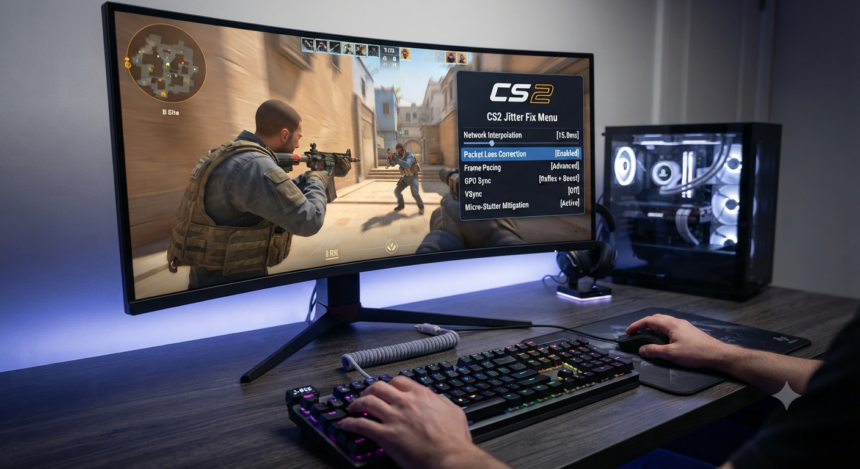
A reliable CS2 jitter fix starts with one question: is the problem coming from your network, your PC, or the game server? Random launch options and copied console commands often hide the symptom without identifying the cause. This guide provides a practical testing order, explains what each setting changes, and helps you prove whether a change improved your connection.
What Jitter Means in Counter-Strike 2
Ping is the response time of your computer to the server, while jitter in CS2 refers to the fluctuation of ping or time difference between data packets. Thus, a stable connection with a ping of, say, 140 ms will provide more stable gameplay than a connection with a ping of 40 ms, which can spike up to 90 ms – because Counter-Strike: Global Offensive relies on the stable flow of information about the positions of all players.
The most common signs of jitter include rubberbanding, delayed fire, unstable/unpredictable enemy player movements, shots that do not register, and deaths that occur despite the player being behind cover. Moreover, some of these signs are similar to those of irregular frame timing on the PC, so the first CS2 jitter fix is diagnosis.
In the new version of the game, Valve introduced Source 2 Telemetry HUD that shows the ping, packet loss, peak jitter, number of missed ticks, and an indicator of the quality of the connection between the client and the server. According to Valve representatives, one should not panic about individual metrics (e.g., jitter) if there are no packet losses, and the percentage of missed ticks is zero.
Start the CS2 Jitter Fix With Telemetry
Open Settings > Game > Telemetry and temporarily set the relevant network and performance displays to Always. Keep the overlay visible during a real online match, especially when peeking, spraying, or entering a busy bombsite where the problem usually appears.
Enable these options:
- Show Ping
- Show Network Problems
- Detailed Network Quality Display
- Network Quality Graph
- Show Frame Time and FPS
The objective is not to stare at every changing number. Look for a repeatable relationship: does the hitch happen when network warnings rise, when frame time spikes, or only when connected to one server? That relationship determines the correct CS2 jitter fix.
Useful CS2 Telemetry Console Commands
Players who prefer the developer console can use these Source 2 telemetry commands:
cl_hud_telemetry_ping_show 2
cl_hud_telemetry_net_misdelivery_show 2
cl_hud_telemetry_net_quality_graph_show 2
cl_hud_telemetry_net_detailed 2
cl_hud_telemetry_frametime_show 2
A value of 2 keeps each item visible during testing. Valve’s current CS2 command list identifies these variables as controls for ping, frame time, packet-delivery anomalies, detailed network quality, and the loss or jitter graph.
Once the issue is solved, return nonessential displays to If conditions are poor. This keeps the HUD clean without removing your ability to spot future connection problems.
CS2 Jitter Fix: Network Jitter or FPS Stutter?
This distinction can save hours. If the network graph changes at the same moment as the stutter, investigate the connection. If frame time spikes while network telemetry remains clean, the better CS2 jitter fix is actually a performance fix.
Use this quick diagnosis:
- Ping is high but stable: likely distance, server choice, or ISP routing.
- Ping jumps repeatedly: likely Wi-Fi interference, congestion, or bufferbloat.
- Packet loss rises during uploads: likely a saturated connection or poor queue management.
- Frame time spikes without network warnings: likely CPU, GPU, driver, temperature, or background-process stutter.
- Only one server feels bad: likely server load or a poor route to that data center.
- Every online game has the same issue: likely local network, router, modem, or ISP trouble.
Do not lower graphics settings to solve packet-timing problems. Likewise, do not add network buffering to solve an overloaded CPU. A strong CS2 jitter fix follows measurable evidence instead of treating every stutter as the same fault.
The Fastest CS2 Jitter Fix: Test Ethernet First
Connect the PC directly to the router using a known-good Ethernet cable. Avoid powerline adapters, wireless extenders, and mesh satellites during this test because they can introduce additional interference, retransmissions, or variable delay.
Valve’s troubleshooting guidance says that packet loss at the first network hop points to a problem between the computer and router, with wireless connections often responsible. If Ethernet immediately stabilizes the telemetry graph, the game is probably not the root cause; the wireless path is.
When Ethernet is impossible, improve Wi-Fi deliberately:
- Use 5 GHz or 6 GHz when signal range allows.
- Move closer to the access point.
- Avoid placing the router behind furniture or near large metal objects.
- Test a less congested wireless channel.
- Prefer a wired backhaul for mesh systems.
- Disconnect weak repeaters during comparison tests.
- Update the Wi-Fi adapter driver from the hardware manufacturer.
This basic CS2 jitter fix often produces a larger improvement than registry tweaks, launch options, or copied autoexec files.
Stop Background Traffic and Check Bufferbloat
CS2 does not require enormous bandwidth, but its packets need to leave on time. A cloud backup, Steam download, phone photo upload, livestream, security-camera feed, or another user saturating the upload can trap game traffic behind a long router queue.
That delay under network load is commonly called bufferbloat. A connection may look fast during a basic speed test yet perform badly in a match because throughput and packet scheduling are different measurements. The IETF’s CoDel and FQ-CoDel documents describe active queue-management systems designed to control bufferbloat and reduce excessive latency.
Run one match with all unnecessary network activity paused. If the jitter disappears, look for QoS, Smart Queue Management, CAKE, CoDel, or FQ-CoDel settings in the router.
A router that manages queues effectively can provide a more durable CS2 jitter fix than simply purchasing a faster internet package. Additional speed does not automatically solve packets waiting too long inside an overloaded queue.
Do not give every device the highest priority. Prioritize the gaming PC or real-time traffic, then set the router’s bandwidth values slightly below the connection’s true sustained capacity when the SQM interface requires manual limits.
Use “Buffering to Smooth Over Packet Loss” Carefully
CS2 includes an in-game option designed to reduce the visible effects of irregular packet delivery. Open Settings > Game and find Buffering to smooth over packet loss.
Use this order:
- None or 0 packets: Lowest added delay and best for a clean connection.
- 1 packet: The best first test when telemetry shows occasional loss or jitter.
- 2 packets: Reserved for a consistently unstable connection where one packet is insufficient.
The console equivalent is:
cl_net_buffer_ticks 0
cl_net_buffer_ticks 1
cl_net_buffer_ticks 2
Buffering is a trade-off, not a network repair. It gives the client more time to absorb uneven packet delivery, which may smooth movement but can also introduce additional delay.
The correct CS2 jitter fix is to use the lowest setting that produces stable gameplay. After repairing the underlying connection, test the game again with buffering returned to zero.
Set Game Traffic Bandwidth Correctly
For a normal broadband connection, set Max Acceptable Game Traffic Bandwidth to Unrestricted. The associated value commonly used by the game is:
rate 786432Valve’s CS2 configuration information lists 786432 as the default rate value, with supported values extending above and below it.
Artificially low rate values can unnecessarily restrict game traffic. Avoid copying old CS network configs built around commands and assumptions that may no longer match Source 2 networking.
Old combinations involving cl_cmdrate, cl_updaterate, cl_interp, and cl_interp_ratio are frequently presented as universal fixes. In CS2, changing undocumented or server-managed variables can produce no benefit and make later troubleshooting harder.
Lower Your Maximum Matchmaking Ping
Open the game settings and reduce Max Acceptable Matchmaking Ping enough to discourage distant data centers. Do not set it so low that matchmaking becomes impractical or fails to find suitable servers.
This CS2 jitter fix does not improve the physical quality of your internet line. It reduces the probability of joining a server that begins with extra geographical distance, more network hops, or an unstable ISP route.
Test several official matches before judging the result. One server can perform badly because of temporary routing or server-side conditions even when your preferred ping limit is reasonable.
Advanced CS2 Jitter Fix for the Router and Windows
Power-cycle the network correctly. Shut down the PC, unplug the modem and router, wait approximately one minute, reconnect the modem first, wait until it is fully online, and then reconnect the router.
This can clear temporary connection states, but it does not prove that the router, modem, or cable is healthy. If the problem returns quickly, continue diagnosing instead of restarting the equipment before every match.
Check the physical and software layers:
- Try another Ethernet cable.
- Test a different router port.
- Install the network driver from the PC, motherboard, or adapter manufacturer.
- Update the router firmware.
- Remove unnecessary VPN or traffic-filtering software during testing.
- Check that a gigabit connection has not negotiated at only 100 Mbps.
- Disable adapter power saving if the network device is dropping unexpectedly.
Microsoft provides a PowerShell command for disabling network-adapter power-management features. Changing this setting can restart the adapter, so use it only when adapter sleeping or power management is a plausible cause.
Disable-NetAdapterPowerManagement -Name "Ethernet 1"Replace "Ethernet 1" with the actual adapter name shown in Windows. Run PowerShell as administrator and expect a brief disconnection.
Trace Route Problems Instead of Blaming the PC
If Ethernet is stable inside the home but one CS2 server region remains problematic, the fault may exist beyond your router. Compare official matchmaking, community servers, and different times of day.
A problem that appears only on one route or during evening congestion is unlikely to be fixed by changing graphics, mouse settings, or Windows visual effects. You need to identify where the unstable path begins.
Windows includes pathping, which combines route discovery with repeated latency and packet-loss measurements across intermediate network hops. Microsoft describes it as a diagnostic tool for identifying routers or links that may be contributing to network problems.
pathping /n target-addressInterpret the output carefully. An intermediate router may ignore diagnostic requests and appear to show heavy loss while every later hop responds normally.
Valve similarly warns that 100% loss at one intermediate hop does not prove a network fault when subsequent hops continue responding successfully.
Save screenshots, dates, times, server regions, and test results before contacting your ISP. Evidence turns “CS2 keeps lagging” into a useful report about recurring packet loss, peak-hour congestion, or a specific route.
When a VPN Can Be a CS2 Jitter Fix
A VPN can help when it replaces a poor ISP route with a cleaner route to the game server. It cannot repair Wi-Fi interference, a damaged cable, overloaded upload, weak router hardware, or packet loss between the PC and the first network hop.
Test the same server region with and without the VPN while telemetry remains visible. Keep the VPN only when missed ticks, packet loss, and peak jitter improve consistently without an unacceptable ping increase.
Treat routing software as an A/B test, not a guaranteed CS2 jitter fix. One route may improve while another becomes slower, and VPN server performance can change throughout the day.
Free VPNs are also a weak troubleshooting baseline because their server load and routing may vary significantly. A clean direct connection should remain the control result.
Fix Frame-Time Stutter When Network Telemetry Is Clean
Some players search for a CS2 jitter fix when their network is not the problem. If ping, loss, jitter, and missed ticks remain stable while the frame-time graph spikes, focus on rendering and system performance.
Try these performance checks:
- Close browser video, recording tools, RGB software, and unnecessary overlays.
- Update the graphics driver.
- Test without third-party filters or monitoring overlays.
- Use an FPS cap the system can maintain consistently.
- Monitor CPU and GPU temperatures for thermal throttling.
- Remove experimental Steam launch options.
- Verify the game files if the problem began after an interrupted update.
- Compare the same map and practice route after each adjustment.
Average FPS can look excellent while poor frame pacing makes the game feel jerky. A stable 200 FPS experience may feel better than an average of 300 FPS that repeatedly drops and produces large frame-time spikes.
CS2 Jitter Fix Mistakes That Waste Time
Many popular optimization lists mix legitimate troubleshooting with placebo changes. Avoid these common mistakes:
- Pasting a large autoexec without understanding each command.
- Using old CS interpolation recipes as universal fixes.
- Flushing DNS and expecting lower in-match jitter.
- Changing ten Windows settings before recording a baseline.
- Setting buffering to two packets on an already stable connection.
- Assuming every red graph element means gameplay is affected.
- Testing only in an offline map.
- Reinstalling CS2 before checking Ethernet and congestion.
- Installing multiple “gaming optimizer” programs at once.
- Disabling security features without evidence that they are involved.
DNS helps translate domain names into IP addresses during connection and discovery. It does not continuously carry the live gameplay packets after your connection to a match server has already been established.
That is why changing DNS servers rarely provides a genuine CS2 jitter fix for rubberbanding, delayed movement, or missed ticks. It may solve a separate name-resolution issue, but that is a different problem.
A 10-Minute CS2 Jitter Fix Checklist
Follow this sequence in order:
- Enable network and frame-time telemetry.
- Reproduce the problem in a real online match.
- Test a direct Ethernet connection.
- Pause downloads, streams, cloud sync, and uploads.
- Restart the modem and router correctly.
- Keep game traffic bandwidth on Unrestricted.
- Set packet-loss buffering to one packet only when telemetry supports it.
- Lower matchmaking ping to reduce distant-server selection.
- Update the network driver and router firmware.
- Compare another server and another time of day.
- Test a VPN only when evidence points to poor ISP routing.
- Investigate frame time when network telemetry remains clean.
Change one variable during each test. Record the server, time, ping behavior, packet loss, missed ticks, peak jitter, and frame-time spikes.
This controlled approach makes the CS2 jitter fix repeatable rather than accidental. It also allows you to undo changes that produced no measurable improvement.
Frequently Asked Questions
What is the best CS2 jitter fix for most players?
The best first step is to enable Telemetry and test a direct Ethernet connection. If Ethernet removes the spikes, improve or replace the wireless path; if the issue remains, pause background traffic and test router queue management before changing advanced settings.
For occasional packet irregularity, try buffering one packet. Do not start with two packets unless one packet clearly fails because extra buffering can exchange responsiveness for smoothness.
Why does CS2 show jitter when my ping is low?
Low ping describes the delay at a particular moment or over a measured period. Jitter describes variation in packet-arrival timing, so a connection can average 20 ms while still producing disruptive spikes.
Watch missed ticks, packet loss, peak jitter, and the relationship between telemetry changes and gameplay. Valve’s Telemetry HUD distinguishes visible network variation from tick misses, helping players avoid overreacting to harmless fluctuations.
Does cl_net_buffer_ticks 1 remove packet loss?
No. It allows CS2 to wait briefly and smooth irregular packet delivery, but it does not recover a weak Wi-Fi signal, repair a damaged cable, stop upload congestion, or correct an unstable ISP route.
Use it as mitigation while repairing the actual cause. The best CS2 jitter fix keeps the buffering value as low as possible and improves the connection itself.
Can changing DNS fix CS2 jitter?
Usually not. DNS is primarily involved in translating names into addresses before or during connection setup, while in-match jitter is caused by packet timing along the active route.
A DNS change may help with failed lookups or slow service discovery. It should not be presented as a primary CS2 jitter fix for rubberbanding, packet loss, or missed commands.
Why does CS2 jitter become worse at night?
Evening problems can indicate shared-network congestion inside the home, neighborhood-level ISP congestion, or a busier route to the server. Compare the same setup and server region at different times.
If the first hop remains stable but later network performance degrades during peak hours, collect pathping results and telemetry screenshots for the ISP. If the first hop also becomes unstable, investigate Wi-Fi, local traffic, the router, or the modem first.
Final Action Plan
Start with proof. Turn on Telemetry, reproduce the issue, and compare network warnings with frame-time spikes. Then test Ethernet, remove background traffic, check bufferbloat, keep bandwidth Unrestricted, and use one packet of buffering only when the data justifies it.
The most effective CS2 jitter fix is not a secret console command. It is a controlled process that isolates the local network, router queue, server route, and PC performance one variable at a time.
Follow the checklist, retain only changes that produce measurable improvements, and reverse everything else. That gives you a cleaner configuration, more consistent matches, and a fix that continues working after the next CS2 update.