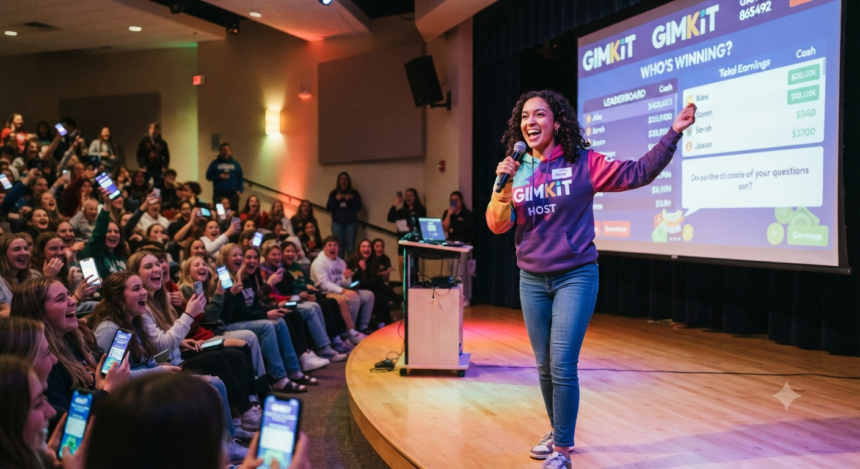
A Gimkit host does much more than launch a quiz and display a game code. The host chooses the question set, selects the game mode, controls access, sets the win condition, manages the lobby, monitors gameplay, and reviews the learning data after the session.
That combination of teacher control and game-based participation is what makes Gimkit useful for review, formative assessment, vocabulary practice, test preparation, and low-stakes retrieval. Gimkit describes its platform as a classroom game show built around knowledge, collaboration, and strategy, while its current hosting workflow centers on selecting a kit, choosing a mode, configuring options, sharing access, and starting the game.
What Does “Gimkit Host” Mean?
The term Gimkit host usually refers to the educator or account holder who creates and controls a live Gimkit session. Students are players; the host is the person who decides how the session works.
An educator account is required to create kits and host games, while student accounts are optional for ordinary live play. Students can join through a game code, QR code, direct join link, or a connected Gimkit Class.
A Gimkit host is responsible for five core decisions:
- Content: Which kit or question set students will answer
- Mode: Which gameplay format will carry the questions
- Rules: Time limit, goals, teams, late joining, names, and mode-specific settings
- Management: Who can enter, who should be removed, and whether the game needs adjustment
- Assessment: What the final report reveals about class and individual understanding
This matters because the same kit can produce very different learning experiences depending on how it is hosted. A fast individual competition may expose fluency gaps, while a team-based or calmer mode may create more discussion and reduce pressure.
How to Become a Gimkit Host
To become a Gimkit host, create an educator account and prepare at least one kit. A kit is the question set used inside the live game, and it can be created from the dashboard before hosting begins.
Gimkit’s official kit-building process starts with the New Kit button, followed by a kit name, language, subject, cover image, and questions. Educators can then launch that kit using Play Live from the dashboard or from inside the kit itself.
Before the class arrives, check three things:
- Every question has one clearly defensible answer.
- Distractors are plausible but not misleading.
- The kit is short enough to allow repeated retrieval during the available time.
A 25-question kit is not automatically better than a 10-question kit. For a short lesson review, a compact set of high-value questions often creates more meaningful repetition and cleaner post-game data.
How to Host a Gimkit Game Step by Step
1. Select the Right Kit
Open the Gimkit dashboard and choose the kit you want to use. Click Play Live beside the kit or open the kit and select Play Live from its side panel.
Choose content that matches the immediate instructional goal. A warm-up kit should diagnose prior knowledge; an exit-ticket kit should focus on the day’s essential learning; an exam-review kit can mix current and earlier material.
2. Choose a Game Mode
The Gimkit host next enters the Mode Picker. Gimkit includes traditional quiz-style experiences and 2D modes in which students move through interactive worlds using characters called Gims.
Do not select a mode only because it is popular. Match the format to the lesson:
- Use a faster competitive mode for fluency and recall.
- Use teams when collaboration matters or ability levels vary.
- Use a calmer mode when students need sustained concentration.
- Use a 2D mode when exploration and strategy will increase participation.
- Avoid complex gameplay when introducing unfamiliar content.
The strongest Gimkit host treats the mode as an instructional variable, not decoration.
3. Configure the Game Options
After choosing a mode, continue to the game-options screen. Standard controls can include a game goal, class connection, late joining, and the Nickname Generator, while additional settings vary by mode.
The Gimkit host should set the ending condition before students enter. Depending on the mode, the goal may involve time, cash, investigations, difficulty, or questions answered.
A clear goal prevents the session from dragging and helps students understand what success looks like. For most classroom reviews, start conservatively.
Shorter rounds produce urgency, make debriefing easier, and allow a second attempt after misconceptions are discussed.
4. Share the Game Code, Link, or QR Code
Once the lobby opens, students can join with the displayed code, a copied join link, or a QR code. Gimkit’s current interface generates the QR code when the host hovers over the game code.
Students joining manually go to gimkit.com/join, enter the code, and provide or approve a name. When Classes are connected and students are logged in, joining can happen automatically.
Keep the lobby visible until most students are in. This gives the Gimkit host time to identify duplicate, inappropriate, or unrecognized names before gameplay begins.
5. Start and Monitor the Game
Start the session only after explaining the learning target and the basic rules. In 2D modes, the host can participate as a player or enter as a spectator; in non-2D modes, the host can use the main leaderboard display for classroom viewing.
During play, the Gimkit host should watch more than the top score. Look for students who stop answering, repeated errors across the room, unusually rapid score changes, and players who appear confused by the mode rather than the content.
Best Gimkit Host Settings for Classroom Control
Use Classes for Stable Student Identity
Gimkit Classes help keep names appropriate, connect student identities to activity, track assignment progress, and preserve results across multiple assignment attempts. Students join a class through a link and use their account names, which the teacher can edit in the class roster.
Classes are useful for recurring groups. For a one-time workshop, substitute lesson, or mixed audience, manual joining may be faster.
Turn On the Nickname Generator for Open Lobbies
When Classes are not connected, the Nickname Generator assigns students safe randomized names. Players can regenerate a name a limited number of times, but they cannot type their own name while the feature is active.
This setting reduces lobby disruption, though it may make individual assessment harder unless the teacher records which nickname belongs to each learner.
Decide Whether Students Can Join Late
Late joining is enabled by default, but the Gimkit host can turn it off during setup. Gimkit specifically recommends disabling it when unwanted players or “game crashers” are a concern.
Leave it on when students may arrive late or reconnect after a network interruption. Turn it off after the class has joined when the code might be visible outside the room.
Choose Teams Intentionally
Teams can keep struggling students involved and encourage discussion, but they can also hide individual misconceptions. Use teams for collaborative review, then follow with a short individual check to confirm who actually understands the material.
For high-stakes diagnostic use, individual play usually produces cleaner evidence. For engagement, relationship building, or mixed-readiness classes, teams may be the stronger choice.
What a Good Gimkit Host Does Before, During, and After Play
Before: Design for Retrieval, Not Trivia
The quality of a session depends on the questions. Build prompts around concepts students must retrieve later, not obscure facts added only to make the game difficult.
Research on retrieval practice shows that recalling information can strengthen later retention, and classroom studies continue to find benefits when retrieval is deliberately built into instruction. Gamified quizzes can also increase participation and perceived engagement, although evidence across gamification research is not uniformly positive in every context.
A strong kit includes:
- A balanced mix of easy, moderate, and challenging items
- Common misconceptions as distractors
- Questions that test meaning, not just recognition
- Repeated concepts phrased in different ways
- Enough items to generate useful data without exhausting students
During: Pause Mentally, Even When the Game Moves Fast
The Gimkit host should actively diagnose the room. If many students miss the same concept, note it for the debrief instead of assuming the game itself will correct the misunderstanding.
In non-2D modes, host Quick Actions can remove a player, increase or decrease a balance, or apply an “Ice” action. These controls can rebalance a game, but they should be used transparently so students do not confuse teacher intervention with academic performance.
In 2D games, hosts have controls for spectating, players, sound, leaderboards, and ending the session. The timer can also be extended by one-minute increments within Gimkit’s stated total-duration limits.
After: Use the Report as the Real Payoff
After a live game using a kit the educator owns, Gimkit provides class-level and individual data. Reports can be viewed immediately after the game or later and can be saved as a PDF.
A Gimkit host should not end with “Who won?” End with:
- Which question had the lowest accuracy?
- Which wrong answer attracted the most students?
- Did errors reflect missing knowledge or confusing wording?
- Which learners need reteaching?
- What should be reviewed again tomorrow?
The leaderboard measures performance inside the game economy. The report is more useful for instructional planning.
Common Gimkit Host Problems and Practical Fixes
Students Cannot Join
First, confirm that the code is current and the lobby is still open. Then check whether late joining was disabled, whether the student is using the correct join page, and whether the school network is blocking or interrupting the connection.
A direct link or QR code reduces typing errors. For recurring classes, connecting a Gimkit Class can simplify future entry.
Unknown Players Enter the Lobby
Remove unrecognized players before starting. Then disable late joining once the intended group is present and avoid posting the game code in a public channel.
Gimkit allows hosts to remove players in the lobby and during gameplay.
Students Focus on Strategy but Ignore Questions
This usually means the gameplay-to-learning balance is too generous. Adjust mode-specific settings so correct answers are required more frequently to earn movement, energy, bait, snowballs, currency, or other resources.
Gimkit’s 2D settings let hosts adjust the relationship between answering questions and receiving gameplay resources in several modes.
The Game Is Too Competitive
Switch to teams, use a calmer mode, hide or de-emphasize the leaderboard, and evaluate progress through accuracy rather than final wealth. Consider celebrating the largest improvement, strongest explanation, or best teamwork instead of only the winner.
Competition can motivate some students and discourage others. A skilled Gimkit host changes the social structure before blaming students for disengagement.
The Session Runs Out of Time
End the game early using the host controls, or add time when the mode allows it. Most importantly, reserve two or three minutes for discussing mistakes; a game that fills every remaining second can generate excitement without consolidating learning.
Gimkit Basic vs. Gimkit Pro for Hosts
Gimkit Basic currently lets educators host games, create Classes, and collect reports without a general usage limit. Basic users receive access to featured modes, while the selection rotates.
Gimkit Pro unlocks all game modes and adds Assignments, which allow students to complete kits independently outside a live hosted session. Pro also supports features such as image uploads and audio in questions.
A free account is enough for a teacher who mainly wants live review and is comfortable using the currently featured modes. Pro becomes more valuable when mode choice, asynchronous homework, or richer question media are regular requirements.
Gimkit Host Player Limits
Gimkit states a hard limit of 500 students for live games and a separate 60-student limit for 2D modes. Actual performance can still depend on device quality, network stability, and available bandwidth.
There are additional restrictions in some account situations. Basic accounts may be limited to five players when hosting a Pro-exclusive mode, and student accounts that host games are also limited to five players.
For large events, test the exact room, network, mode, and device mix beforehand. A platform maximum is not the same as a guaranteed comfortable capacity on every school network.
Advanced Gimkit Host Strategy: A 15-Minute Review Model
Use this structure when time is limited:
- Minute 0–2: State the learning target and joining instructions.
- Minute 2–3: Check names, explain the mode, and start.
- Minute 3–10: Run a focused round with a compact kit.
- Minute 10–12: End the game and inspect the report.
- Minute 12–15: Reteach the two weakest concepts and ask one final verbal or written retrieval question.
This model prevents the game from consuming the debrief. The Gimkit host retains control of the lesson arc instead of letting the timer decide when learning ends.
Frequently Asked Questions
Do Students Need Accounts to Join a Gimkit Host?
No. Student accounts are optional for standard live games. Students can enter through the join page with a game code, QR code, or direct link, while connected Classes use logged-in student accounts for easier identification.
Can a Student Be a Gimkit Host?
A student account can host, but Gimkit states that student hosts are limited to five players. Educators should use educator accounts for normal classroom hosting, reporting, Classes, and full teacher workflows.
Is Hosting a Gimkit Game Free?
Yes. Gimkit Basic allows educators to host live games using featured modes, create Classes, and collect reports. Pro is needed for unrestricted access to all modes and for Assignments.
How Does a Gimkit Host Stop Random People From Joining?
Use Classes or the Nickname Generator, verify names in the lobby, remove unknown players, and disable late joining after the intended students have entered. Avoid sharing the code in public spaces.
Can a Gimkit Host See Student Results?
Yes. When the host owns the kit, Gimkit provides a report containing class and individual data after the live game. The report can be opened immediately or reviewed later and exported as a PDF.
Conclusion: Host for Learning, Not Just Excitement
The best Gimkit host begins with a learning target, chooses a mode that supports that target, protects the lobby, watches for misconceptions, and uses the report to plan the next instructional move. The game creates energy, but the host turns that energy into evidence.
Start with one accurate, focused kit and a short round. Configure names and late joining, leave time for a debrief, and review the lowest-performing questions before students leave. That is the difference between merely running Gimkit and hosting it well.