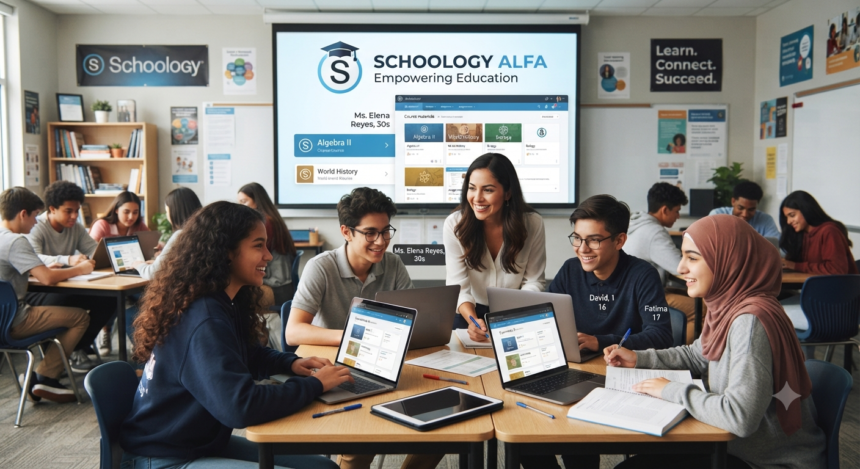
Schoologyalfa is a search term commonly used for the Schoology learning portal associated with Alfa Fundación. It is not a separate learning management system, a special edition of Schoology, or an independent app. The verified portal is an institution-specific Schoology environment, while Alfa Fundación is an educational initiative that supports high-potential students in the Monterrey metropolitan area of Mexico.
That distinction matters. Several online articles describe the platform as though it has unique artificial intelligence, gamification, offline learning, or adaptive-course features, but those claims are not confirmed by the official portal or Alfa Fundación’s public information.
A reliable guide should explain what can be verified, what depends on the institution’s configuration, and how users can access the system without exposing their credentials. This article covers those points in practical detail.
What Is Schoologyalfa?
Schoologyalfa is best understood as a compressed or misspelled version of “Schoology Alfa.” In practical terms, it refers to Alfa Fundación’s customized portal on Schoology, the learning management environment documented and supported within PowerSchool’s learning ecosystem.
The institution’s portal is hosted on a Schoology subdomain carrying the Alfa Fundación name. It provides authorized users with access to the digital tools their institution has chosen to enable.
A customized portal does not mean the underlying software is a different product. The institution can control branding, authentication, course availability, account permissions, grading visibility, parent access, and communication settings, while the core tools remain part of Schoology.
PowerSchool’s documentation repeatedly notes that visible options may differ according to school settings and user permissions. Two users may therefore see different menus even when they are using the same institutional portal.
Schoologyalfa Quick Facts
- Platform type: Institution-specific learning management portal
- Underlying system: Schoology Learning within the PowerSchool ecosystem
- Associated organization: Alfa Fundación
- Likely users: Authorized students, teachers, administrators, and approved guardians
- Typical functions: Courses, assignments, assessments, grades, calendars, announcements, files, discussions, and messages
- Access requirement: Credentials or authentication approved by the institution
- Important warning: Never enter a password on a third-party article, directory, or imitation login page
Schoologyalfa and Alfa Fundación: The Verified Connection
Alfa Fundación describes its mission as promoting social mobility by identifying and educating intellectually high-potential students from communities in the Monterrey metropolitan area. Its educational model is student-centered, places teachers in a facilitator role, and uses technology to support active learning.
The organization says its wider formation program accompanies students across multiple educational levels over a ten-year period. Its objective is not simply academic performance but the development of capable graduates who can contribute to their communities.
Alfa Fundación also operates enrichment activities in areas including mathematics, science, English, and Spanish. Its public information describes extracurricular centers, a nonprofit high school, laboratories, and a structured academic-support model.
These details explain why a centralized digital learning portal would be valuable. They do not, however, prove that every possible Schoology feature is activated for every Alfa Fundación student.
Is Schoologyalfa Different from Standard Schoology?
The short answer is no. It is an institutional implementation of Schoology rather than a newly developed learning platform.
The distinction is similar to a company using a customized version of a widely available cloud service. The organization may add its name, choose login methods, enroll its own users, configure permissions, organize courses, and decide which external tools are connected.
The underlying Schoology system can support:
- Digital course materials
- Assignments and file submissions
- Assessments and quizzes
- Discussion activities
- Course calendars
- Grades and instructor feedback
- School and course announcements
- Direct messaging
- Parent or guardian access
- Google Drive assignments
- Mobile access
Not every feature is guaranteed to appear in Schoologyalfa. Availability depends on Alfa Fundación’s licensing, administrative settings, course design, user role, integrations, and authentication policies.
How to Log In to Schoologyalfa Safely
The safest approach is to begin with the login route supplied directly by Alfa Fundación, a teacher, or an administrator. The publicly indexed portal uses the Alfa Fundación Schoology subdomain, but users should still verify the browser address before entering a username or password.
Follow these steps:
- Open the official portal link provided by the institution.
- Confirm that the domain is the expected Schoology address associated with Alfa Fundación.
- Enter your assigned username, institutional email, or approved single sign-on credentials.
- Complete any redirected authentication step.
- Bookmark the verified page after a successful login.
- Sign out when using a shared computer or mobile device.
Do not assume that a standard Schoology email-and-password form will always work. PowerSchool explains that organizations can use several login flows, including direct credentials, school-specific authentication, Google single sign-on, and QR-code access.
Users who select the wrong organization or login method may receive an error even when their password is valid. The correct institution must be selected before the appropriate authentication process can begin.
How to Verify the Correct Portal
Before entering any credentials, inspect the page carefully.
Look for:
- A legitimate Schoology domain
- Alfa Fundación’s institutional name
- A secure browser connection
- The login route supplied by a teacher or administrator
- Familiar institutional branding
- A recognized single sign-on page, when applicable
Be cautious when a page asks for unnecessary information. A normal educational login should not require bank details, card information, cryptocurrency payments, or unrelated identity documents.
What to Do When the Schoologyalfa Login Fails
Start with the simplest checks. Confirm that Caps Lock is off, remove accidental spaces, verify the username, and make sure the device has a stable internet connection.
Next, reopen the institution’s official login page rather than repeatedly submitting credentials through an old browser tab. Stored sessions, expired authentication tokens, and previously selected organizations can interfere with login attempts.
If the account uses school-managed authentication, a public Forgot Password form may not control the password. PowerSchool advises users to contact their system administrator or school support contact when the password-change option is unavailable or the institution manages authentication centrally.
Schoology’s current documentation states that passwords created within its system require a minimum of 12 characters. This requirement may not apply in exactly the same way when an institution uses a separate single sign-on provider.
Avoid repeated guessing. Entering credentials on unofficial pages creates a phishing risk, while too many unsuccessful attempts may complicate account recovery.
What Students Can Do in Schoologyalfa
Once signed in, students may see a home page containing course activity, upcoming work, overdue items, notifications, grades, and installed learning tools. Exactly what appears depends on the institution’s configuration.
Some students may have access to all these areas, while others may see a simplified interface. Grade, messaging, discussion, and application features can be restricted by administrators.
View Courses and Learning Materials
A course can contain pages, files, links, assignments, assessments, media, and discussions. Teachers may organize these materials into weekly folders, units, subjects, or topic-based modules.
Schoology’s student documentation also supports linked resources such as Google documents when the institution and teacher have configured the relevant integration.
A practical student routine is to open every active course and identify:
- Where announcements are posted
- How weekly folders are named
- Where assignments appear
- Whether the teacher uses discussions
- Where grades and feedback can be checked
- How technical questions should be reported
Course design varies by teacher. Students should not assume every class will place readings, announcements, and graded work in identical locations.
Submit Assignments Correctly
Schoology supports many common submission formats, including PDF, DOCX, PPTX, XLSX, JPG, PNG, MP3, and MP4. After submission, an instructor can grade the work, add feedback, and return a file.
The accepted format can still vary by assignment. A teacher may ask for a PDF even though the platform technically accepts several document types.
Before selecting Submit, students should:
- Read the complete instructions
- Open any attached rubric
- Confirm the due date and time
- Use the requested file format
- Rename the file clearly
- Check that the file opens correctly
- Upload the final version
- Save a local backup
- Look for submission confirmation
This workflow prevents a common problem: uploading the correct assignment in the wrong format or accidentally submitting an earlier draft.
For long written responses, prepare the answer in a separate document first. This reduces the risk of losing work because of a browser refresh, expired session, power failure, or unstable internet connection.
Track Deadlines with the Calendar
Schoology’s calendar can display course, group, school, and personal events. Users can review the calendar by month, week, or day and apply color coding to different calendars.
Assignments with due dates may also appear in the Calendar and Upcoming areas. These views can become a useful secondary planning system when they are checked consistently.
Students should not treat the calendar as the only source of truth. Teachers may place essential instructions inside folders, announcements, attached documents, or external applications.
External-tool activities may not produce the same overdue behavior as native Schoology assignments. A task can therefore require attention even when it is not shown prominently in the standard overdue panel.
Review Grades and Feedback
Students may be able to view grades from the home page, course grade area, individual assignment, or assessment-results screen. Teachers and administrators control when grades are published.
Some assessments with subjective questions require manual grading before a final result appears. Automatically scored questions may display earlier than essays, written explanations, or teacher-reviewed work.
The score is not the full feedback. Students should also check:
- Written instructor comments
- Rubric categories
- Returned documents
- Annotations
- Correction requests
- Resubmission instructions
Reading feedback before beginning the next related assignment can prevent the same mistake from being repeated.
Schoologyalfa for Teachers
For teachers, the platform can serve as the organizational backbone of a course rather than merely an upload folder. Schoology includes tools for creating assignments, managing submissions, grading, commenting, building assessments, and organizing course materials.
Effective course structure is often more important than the number of features used. A predictable weekly pattern, consistent naming convention, visible due dates, and concise instructions reduce confusion.
A Better Course-Organization Pattern
Teachers can repeat a structure such as:
- Start Here: Weekly objectives and essential instructions
- Learn: Readings, videos, demonstrations, and reference files
- Practice: Ungraded or low-stakes activities
- Discuss: Questions, reflections, and collaborative prompts
- Submit: Final assignment or assessment
- Review: Feedback, corrections, and extension resources
Every graded activity should state four things clearly:
- What the student must complete
- What the student must submit
- How the work will be evaluated
- When and where it must be submitted
This is not a special Schoologyalfa feature. It is a course-design practice that makes any learning management system easier to navigate.
Make Due Dates Unambiguous
A date without a time can cause confusion, especially when students study from home. Teachers should specify the date, submission time, time zone, accepted file type, and late-work policy.
Where possible, the due date should also be entered in the platform’s assignment settings. Schoology can then display it in relevant calendar and upcoming-work areas.
Use Feedback as Part of the Lesson
Feedback should tell students what was successful, what needs correction, and what action to take next. A number alone may measure performance, but it does not always guide improvement.
Teachers can combine short written comments with rubrics, document annotations, returned files, or class-wide clarification. Schoology’s assignment system supports instructor feedback and returned documents after submission.
Schoologyalfa for Parents and Guardians
Parent access is not automatic for every user. Schoology allows administrators to create parent accounts or distribute a unique Parent Access Code, but the institution decides whether guardian access is enabled.
Where access is available, a guardian account can include a personal view and a child-activity view. Depending on school settings, parents may review recent submissions, grades, attendance information, enrollments, calendar items, and course activity.
Parent permissions can be adjusted by administrators. A parent may therefore see some information without having the same view or controls as the student.
How Parents Should Use the Portal
Parents should use the platform as a conversation aid, not as a surveillance tool. A useful weekly review focuses on:
- Missing or overdue work
- Upcoming deadlines
- Teacher feedback
- Recent grades
- Repeated academic difficulties
- Positive progress
- Questions requiring teacher clarification
After checking the portal, the parent can have a calm discussion with the student. The goal should be problem-solving and support rather than punishment based on an isolated score.
Schoology can also provide parent email digests and overdue notifications where those features are enabled. The institution’s settings determine which alerts are available.
Can You Use Schoologyalfa on a Phone?
Schoology provides Android and iOS mobile access. The app can support courses, messages, notifications, resources, assignment review, and certain submission activities.
PowerSchool explicitly notes that the mobile apps provide access to selected features and settings. A computer or mobile browser may still be required for functions unavailable in the app.
To connect through the app, users generally:
- Open the Schoology app.
- Choose the school or domain option.
- Search for the correct organization.
- Select Alfa Fundación’s verified result.
- Follow the organization’s login process.
- Complete single sign-on when prompted.
Users should not select a similarly named institution. PowerSchool advises users to search for and choose their specific school or organization so they can be redirected to the appropriate login page.
When to Use a Computer Instead
A desktop or laptop is usually preferable for:
- Lengthy written assignments
- Complex assessments
- Multiple-file submissions
- Detailed course creation
- Rubric-based grading
- Large document reviews
- Side-by-side research
- Troubleshooting unsuccessful uploads
The phone app is most useful for quick checks, alerts, announcements, calendar reviews, discussions, and straightforward submissions.
Notifications, Messages, and Communication
Schoology can send notifications for academic, social, group, and school activity. Email, text, push, and in-platform behavior can differ by account, region, device, and institutional settings.
Some messaging functions may be restricted by administrators. For example, students may not be permitted to message one another unless the system administrator has enabled that capability.
Students should enable alerts that lead to a clear action, including:
- New assignments
- Due-date changes
- Instructor comments
- Direct messages
- Grades
- School announcements
Too many low-value alerts can cause notification fatigue. Important academic notices are easier to miss when every minor activity produces an alert.
Privacy and Security Best Practices
A Schoology account may provide access to educational records, submitted work, teacher feedback, messages, and course resources. PowerSchool’s privacy information explains that its learning management system processes course content and student-submitted materials.
That makes credential protection essential.
Use these safeguards:
- Create a unique password
- Do not reuse a social-media or gaming password
- Never share student or guardian credentials
- Avoid saving passwords on public devices
- Check the domain before signing in
- Sign out after using a shared device
- Report unexpected password-reset emails
- Keep the browser and mobile app updated
- Contact the institution about suspicious requests
A search result that discusses Schoologyalfa is not necessarily an official access page. Informational websites may explain terminology, but credentials should be entered only through the verified institutional portal or an approved authentication flow.
Watch for Phishing Pages
A phishing page may copy a logo, login form, or color scheme. Visual appearance alone is not proof that a page is legitimate.
Warning signs include:
- Misspelled domains
- Extra words before or after the real domain
- Requests for payment
- Urgent threats about account closure
- Unexpected credential-verification emails
- Poor grammar or unusual branding
- Requests for personal documents
- Login links sent by unknown accounts
When uncertain, close the page and open the institutional portal through a previously verified bookmark.
Common Schoologyalfa Problems and Practical Fixes
The Course Is Missing
First confirm that the correct account and organization are open. If other courses appear but one is absent, the teacher may not have published it, enrollment may be incomplete, or the academic term may not yet be active.
Contact the teacher or administrator with the course name, student username, and a screenshot. Never send the password.
An Assignment Will Not Upload
Check the file type, size, filename, internet connection, and submission deadline. Try a supported browser or desktop device, especially when the mobile app fails.
Save a screenshot of the error and contact the instructor before the deadline. The message should include the assignment name, attempted submission time, device, browser, and file format.
A Grade Is Not Visible
The teacher may not have published the grade, the work may require manual review, or the institution may restrict grade visibility. Check the assignment-feedback area and course-grade section before requesting clarification.
An absent grade does not automatically mean the assignment was not received. Confirm the submission status separately.
Notifications Are Not Arriving
Review account preferences, the email address attached to the account, spam folders, mobile permissions, and app updates. PowerSchool recommends contacting the Schoology administrator or support contact when settings appear correct but notifications still fail.
For mobile alerts, confirm that notifications are enabled both inside the app and in the device’s operating-system settings.
The Mobile App Shows the Wrong School
Sign out, search again for the correct school or custom domain, and select the Alfa Fundación organization. Previously selected organizations may remain as the default on the device.
If the wrong account continues to appear, sign out of Schoology in the device’s browser as well. A browser authentication session may be reconnecting the app to the wrong account.
A Submitted File Is the Wrong Version
Contact the teacher immediately and explain what happened. Do not delete evidence or claim a technical error when the wrong file was selected accidentally.
Where resubmissions are enabled, upload the correct version and verify it. If resubmission is unavailable, ask the teacher whether the file can be replaced.
How to Get More Value from Schoologyalfa
The strongest improvement is consistency. Students who check the dashboard at a set time each day, convert due dates into a study plan, and review feedback after grading are less likely to miss instructions.
A simple daily routine works:
- Check announcements and messages.
- Review Upcoming and Calendar.
- Open every active course.
- Confirm new or changed deadlines.
- Complete the highest-priority task.
- Verify every submission.
- Record questions for the teacher.
- Review returned feedback.
This routine can be completed quickly when course materials are organized. The objective is not to stay logged in all day but to perform focused checks at predictable times.
Use a Separate Study Planner
The LMS calendar shows institutional deadlines, but it may not show how much preparation each activity requires. Students should convert major deadlines into smaller personal tasks.
For example, a Friday science report might become:
- Monday: Read instructions
- Tuesday: Gather evidence
- Wednesday: Write first draft
- Thursday: Edit and format
- Friday: Upload and verify
This approach makes Schoologyalfa part of a wider study system instead of the only planning tool.
Keep Digital Files Organized
Create a clear folder structure on the device or cloud-storage account:
- School year
- Subject
- Unit
- Assignment
- Drafts
- Submitted version
- Teacher feedback
Files should have descriptive names such as Science_Energy_Report_Final.pdf. Names like document1 or newfile create confusion during submission.
Claims Users Should Treat Carefully
Some third-party articles describe Schoology Alfa as a newly redesigned platform with exclusive artificial intelligence, adaptive learning, extensive gamification, or comprehensive offline access. These descriptions may sound attractive, but they are not supported by the official Alfa Fundación portal or the Schoology documentation reviewed for this guide.
That does not mean an institution can never connect additional tools. Schoology supports external applications and integrations, and teachers may provide access to third-party software through the platform.
The important distinction is between:
- A verified core Schoology function
- A feature enabled by a particular institution
- A connected third-party application
- An unsupported claim made by an informational website
Reliable content should not present the fourth category as established fact.
Frequently Asked Questions About Schoologyalfa
Is Schoologyalfa a separate version of Schoology?
No verified source identifies it as a separate product. The term refers to the Schoology portal associated with Alfa Fundación, while the underlying learning-management functions come from Schoology within PowerSchool’s educational ecosystem.
Its branding, users, courses, permissions, and authentication may be institution-specific. That customization does not turn it into an entirely different learning management system.
What is the official Schoologyalfa login?
The indexed institutional portal is the Alfa Fundación Schoology subdomain. Users should access it through the link supplied by the institution and verify the Schoology domain before entering credentials.
Avoid pages that merely publish information about the platform. An article appearing in search results is not automatically an authorized login provider.
Can anyone create a Schoologyalfa account?
Not necessarily. Institution-managed Schoology environments generally rely on accounts, access codes, enrollment records, or authentication methods controlled by the organization.
Students and guardians who have not received access details should contact Alfa Fundación or the relevant administrator. Creating an unrelated public Schoology account may not provide access to the institution’s courses.
Can parents see a student’s grades and assignments?
They may be able to, but only when parent access is enabled and the account is linked correctly. Schoology lets administrators control parent permissions.
Visible information can include submissions, grades, courses, attendance details, calendars, and activity, depending on the institution’s configuration.
Does Schoologyalfa work without internet access?
The verified documentation supports mobile access but does not establish complete offline functionality for the Alfa Fundación portal. Some files may remain available after being downloaded, but logging in, receiving updates, synchronizing grades, submitting work, and accessing live course functions normally require connectivity.
Users should not rely on third-party claims of comprehensive offline access without confirmation from Alfa Fundación.
Conclusion: Use Schoologyalfa as a Daily Academic System
Schoologyalfa is most useful when it is treated as a structured academic workspace, not just a page opened moments before an assignment is due. Use the verified Alfa Fundación login, secure the account, check courses consistently, confirm every upload, and read teacher feedback carefully.
Students should build a five-minute daily review habit. Teachers should maintain a predictable course structure, while parents should use available progress information to support calm and constructive conversations.
The next step is straightforward: obtain official access information from Alfa Fundación or your school, bookmark the verified portal, adjust useful notifications, and organize upcoming work in a personal study plan. That routine provides more value than chasing unverified “special features” described on third-party websites.